Fingie Controller
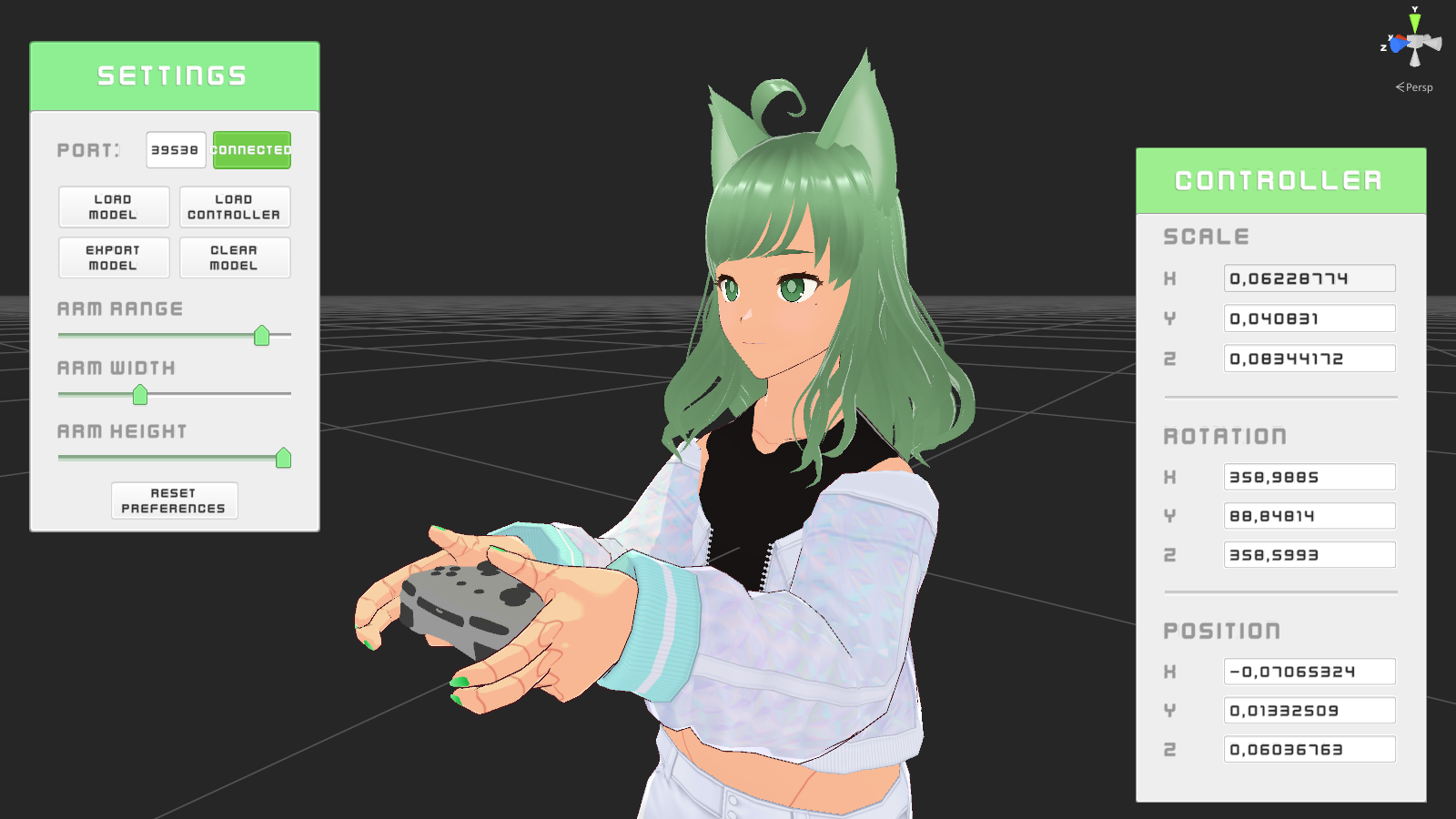
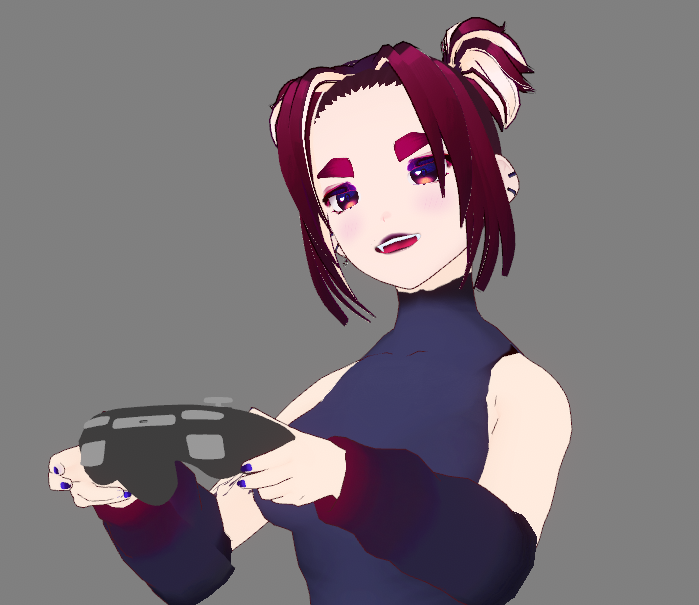
Fingie Controller is a tool for VTubers that allows them to add a controller to their 3D model and have it respond to inputs Instructions In Fingie Controller: Adding A Controller To a VRM Model: (this can be skipped if you intend to use VNyan Props) Press "Load Model" and select a model Press "Load Controller" and select one of the included controller files (currently supported formats are: FBX, OBJ, GLTF2 ). Two controllers are included with Fingie Controller. Click on the controller to reveal the Transform Widget. Drag the coloured arrows to move the controller in each axis. Drag the coloured lines in the sphere around the controller to rotate the controller around each axis. Drag the white cube to change the scale of the controller. Alternatively you can change the values in the Controller panel to the right Change the Arm Width slider and controller scale so the controller fits in your avatar's hands Press "Export Model" and select a folder. The model will be exported with its original name with the name of the controller appended at the end. Adding A Controller To a VSFAvatar Model: You can use Fingie Controller with VSFAvatar models, however as the VSFAvatar SDK does not currently support runtime exporting of VSFAvatar models you will have to add the controller model and toggle blendshape manually in Unity Sending Tracking Data Enter a port number (by default it is 39538) Press “Connect” In VSeeFace: Select the newly exported model Under Settings-> Expression Settings you will find a new Controller expression. Set its hotkey to whatever you'd like. Open Settings -> General SettingsEnable the "OSC/VMC receiver (disables tracking)" option in VSeeFace Enter the same port entered in Fingie Controller Toggle on "Apply VSeeFace tracking" and set all toggles except "Track fingers" and "Track hands to shoulders" In VNyan: Adding a Controller VNyan Prop: (this can be skipped if you intend attach the controller to the model) Open the Props windowPress Add Prop and select one of the included .vnprop controllersMove/Rotate/Scale the controller to fit using the sliders Connecting to Fingie Controller: Open Settings -> General SettingsIn the Tracking Layers tab enter the same port entered in Fingie Controller after your last used VMC ReceiverSet all tracking sliders to 0 except "Track Right Arm", "Track Right Hand", "Track Right Fingers", "Track Left Arm", "Track Left Hand" and "Track Left Fingers"Set Blendshape Tracking to "Don't track" Frequently Asked Questions Q: Does Fingie Controller support VSFAvatar models? A: Fingie Controller can send tracking data to any model, but can only attach a controller to VRM models. You will have to use VNyan Props or attach the controller in Unity. Q: Did you create this section just to answer the previous question? A: Yea. Credits Controllers by Otter Logo by Fenrir
 Amba 2 games· 137 followers· 8 ratings· portfolio 44 View creator →
Ratings over time
Cumulative · 30dScreenshots
1 / 5