
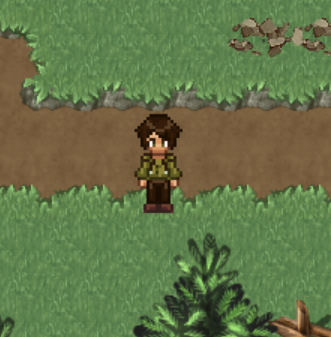
Memao Animator
This is an RPG Maker MV/MZ Plugin/VXAce Script that will allow you to use Sprite Sheets created by Memao Sprite Sheet Creator. <a href="https://sleeping-robot-games.itch.io/sprite-sheet-creator">Memao Sprite Sheet Creator by Sleeping Robot Games, Memao</a> <a href="<a href="https://cloudthewolf.itch.io/cloudthewolf-scripts-demo">CloudTheWolf" class="redactor-linkify-object">https://cloudthewolf.itch.io/cloudthewolf-scripts-demo">CloudTheWolf</a> Scripts Demo by CloudTheWolf</a> This plugin provides no Out-Of-Box functionality unless using Memao sprites. Instructions For Memao Sprite Creator: Set Strike animation to Pickaxe Export Sprite Sheet with all animations Add Extra Animations (Optional) Change Strike animation to "Hoe" Export Sprite Sheet with just Strike Animation Change Strike animation to "Axe" Change Strike colour to Match Chop Export Sprite Sheet with just Strike Animation Open main Sprite Sheet in an image editor (Eg photoshop) Change height to 1440 (Anchor top centre to ensure nothing moves. Add an 8x30 guide Add an extra vertical guide at X-24 (So you know where to align other extra sprites) Open the Strike - Hoe spite sheet in the image editor and copy everything to the main sprite sheet. Position below the Reap spites and align correctly (The Eye colour on the right side of the guide should be directly next to the guide) and the top of the second frame should be at the top of guide Repeat this for Strike Axe and place below Strike Hoe Save the new sheet in img/characters as a PNG file. it must have the suffix "_$(memao)" to work with the plugin (Eg MyCharacter_$(memao).png) For RPG Maker MZ Place Cloud_MemaoAnimatorMZ.js in js/plugins in your project. Place Cloud_MemaoAnimatorMZ_SE.js below the main plugin Open the Plugin manager and add the Cloud_MemaoAnimatorMZ plugin. Note: If using VizuStella plugins place this script above them. Config Click to Expand Cell Width/Hight (px) - (48px) - This is the cell size for each sprite cell and shouldn't need changing Scale (%) - (200px) - How much to upscale the sprites by X Offset (px) - (0px) Offset the sprite on the X Axis Y Offset (px) - (8px) Offset the sprite on the Y Axis. This will automatically be Scaled by Scale (%) FPS - Control the FPS for the Walking (7)/Running(9)/Idle (3) and Actions (8) Row Map Override (JSON) - Advanced Users - Used to override the JSON Map Usage: Click to Expand Set your character sprite to your new sprite sheet (It will look weird int the editor, but don't worry) You can also use these sheets for NPC Sprites. To play an animation: In your Event, add a Plugin Command and select the Cloud_MemaoAnimatorMZ plugin Select the "Play Action" command and you'll have 6 settings Target (What plays the animation) - player, thisEvent or eventId Event ID: If Target is eventId, specify the target event Action: What animation you want to play. (Axe Strike, Axe Chop, Hoe, Idle, Pickaxe, Pickup, Plant, Reap, Run, Walk, Water) Direction: Which direction to play the animation (Current, Up, Down, Left, Right) Loop: Should we loop the animation (True/False) Wait: Should we wait for this animation to finish before going to the next animation. (Don't use with Loop) If you use Loop, there is a Stop Action command to top this Known Compatibility Issues DotMoveSystem - Fully Incompatible
 CloudTheWolf 2 games· 36 followers· 7 ratings· portfolio 37 View creator →