FS25 Manual Fencing
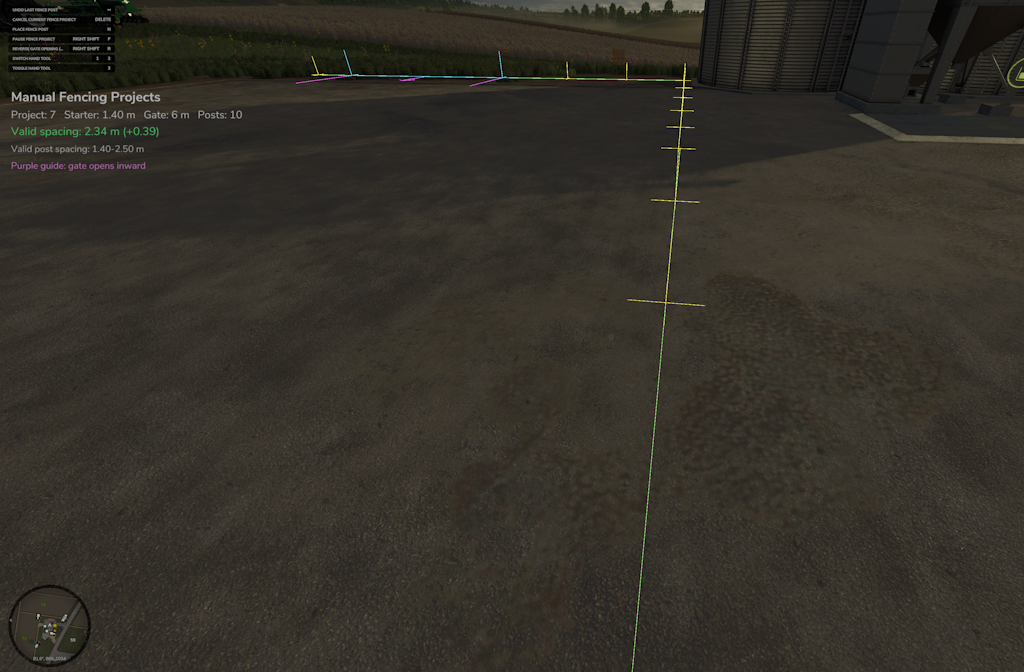
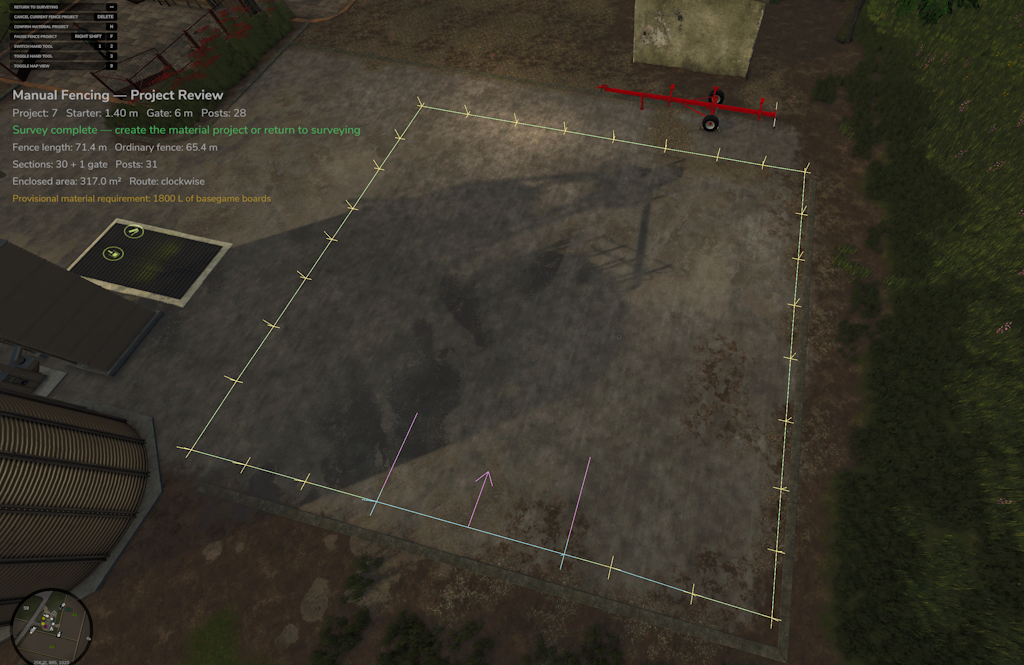
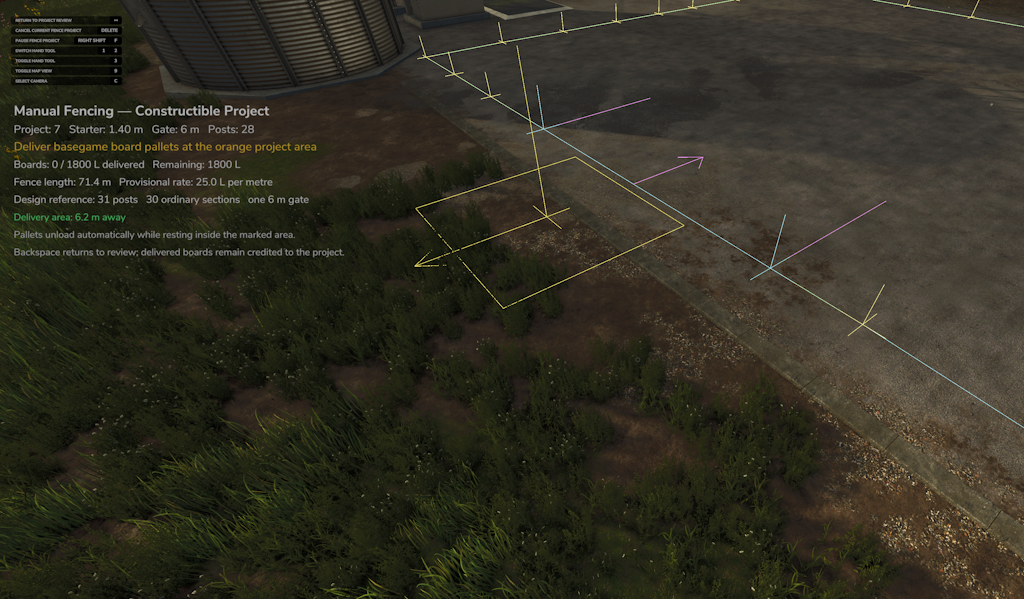
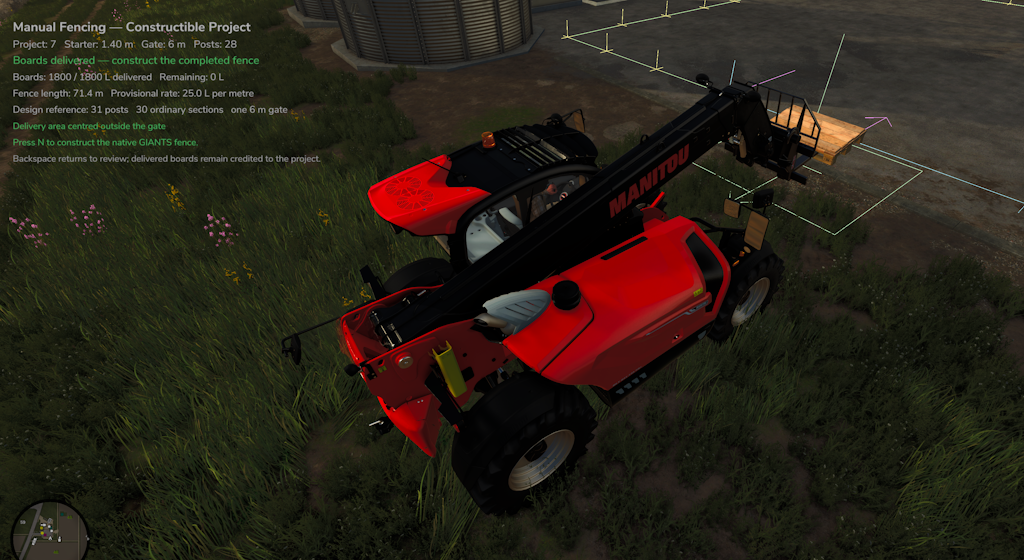
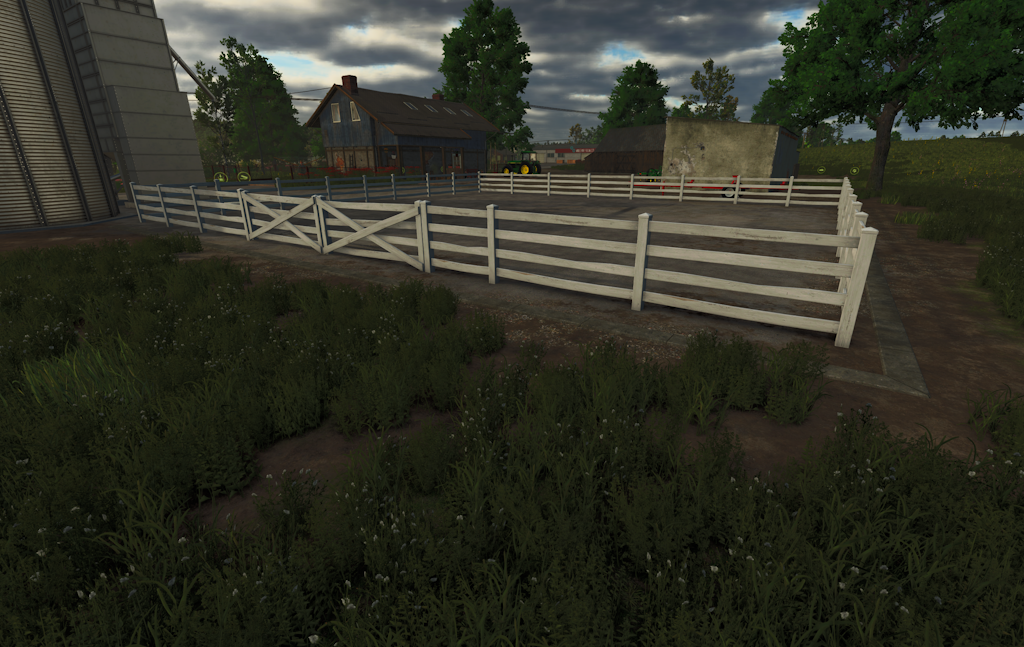
Manual Fencing Manual Fencing is an on-foot fencing system for Farming Simulator 25. Instead of drawing a fence from the construction menu, the player physically walks the proposed boundary, places each post, chooses the direction of the gate, and creates a persistent fencing project. Once the route has been surveyed, the player reviews the design, delivers basegame Planks, and completes the project. The finished result is built from native GIANTS fence segments, so it saves, loads and behaves like a fence placed through the normal construction system. This is an initial beta version, with a number of enhancements in development. Beta testing ensures that the core mechanics work, and that there aren't any major issues prior to further development. Main features Survey fence boundaries while walking on foot. Clear post-spacing and route markers. Native six-metre opening gate. Choose whether the gate opens into or away from the enclosure. Pause a survey and resume it later. Save and reload unfinished projects. Maintain several fencing projects at the same time. Review the fence length, post count, enclosed area and material requirement before committing. Deliver basegame PLANKS pallets to the project area. Supports partial deliveries across multiple pallets. Delivered materials persist through saving and loading. Completed fences use native GIANTS fence placement. Multiplayer-authoritative project and material system. v0.0.4.2 A quick update to add rotation on placing the initial gate, moving the UI away from the F1 menu, and some additional MP debugging v0.0.6.6 The mod now allows for the choice between 16 fences, and their respective gate sizes. There are warnings for small gates where it could become difficult to drive a trailer into the pasture for unload, or to use the Herding Lite mod.v0.0.6.6 The update includes multiplayer fixes, and removes the requirement to use planks to complete a fence. Due to the mod name change, you'll need to delete the last version and add this to your mod folder. How to use Manual Fencing Key commands are user configurable in the controls. The below use the mod default keys 1. Start a fencing project Stand on land owned by your farm and press: Right Shift + F A preview for the starter fence and gate will appear in front of the player. The initial layout contains: A short 1.40-metre fence section. A native six-metre gate. A visual guide showing which side the gate will open towards. Turn and position yourself until the preview is where you want the entrance to the enclosure. 2. Choose the gate-opening direction Press: Right Shift + R This switches the gate between opening inward and outward. The purple gate guide shows the direction in which the gate will open. The material-delivery area will later appear on the opposite side of the gate, leaving the opening side clear. 3. Place the starter fence and gate Press: N The starter section and gate position are now recorded. Walk to the far end of the gate. The game will confirm when you have reached the correct gatepost and can begin surveying the remainder of the fence. 4. Walk the fence boundary Walk clockwise around the intended enclosure. Press N whenever you want to record another fence post. The HUD shows the distance from the previous post: Target spacing: approximately 1.95 metres Minimum accepted spacing: 1.40 metres Maximum accepted spacing: 2.50 metres The preview line and post markers show how the completed fence will follow the route. The mod will prevent invalid placements such as: Posts that are too close or too far apart. Fence lines crossing an earlier part of the route. Sections placed on land not owned by the project’s farm. 5. Correct a mistake Press: Backspace This removes the most recently recorded post. You can continue pressing Backspace to work backwards through the route. 6. Pause and resume the job Press: Right Shift + F while surveying to pause the project. Pausing hides the markers and allows you to: Carry out other farm work. Enter vehicles. Sleep until the next day. Save and leave the game. Begin another fencing project. Press Right Shift + F again near the project to resume it. All recorded posts, the gate position and the chosen gate-opening direction are preserved. 7. Close the enclosure Continue around the boundary until you return to the first post of the short starter fence. When the final section is within the accepted spacing range, press: N The project will enter its review stage. 8. Review the design The review screen displays: Complete fence length. Length of ordinary fencing. Number of fence sections. Number of posts. Gate size. Enclosed area. Required quantity of Planks. Press: N — Commit the design and create the material project Backspace — Return to surveying and make changes Right Shift + F — Pause the reviewed project 9. Deliver Planks (currently paused, and will return with more realistic building materials) After committing the design, a marked delivery area appears beside the gate. The area is: Centred along the gate. Aligned with the gate. Positioned on the opposite side from the gate-opening direction. Place a basegame pallet containing the PLANKS fill type inside the marked area. The pallet must be stationary before it begins unloading. The project accepts partial deliveries: Only the amount still required is consumed. Any surplus remains on the pallet. Several pallets can be used. Delivery progress survives pausing, sleeping and save/reload. The delivery marker turns green when the full requirement has been supplied. 10. Construct the fence Once all required Planks have been delivered, stand near the project and press: N The complete native GIANTS fence and gate will then be constructed along the surveyed route. Controls ControlActionRight Shift + F Start, pause or resume Manual Fencing N Place the starter section, gate or post; close the route; confirm a design; construct a supplied fence Right Shift + R Reverse the gate-opening direction Backspace Undo the last post or return to the previous project stage Delete Cancel the current project Right Shift + N Start a new project while preserving paused projects Right Shift + P Browse unfinished projects belonging to the current farm All controls can be remapped through the Farming Simulator control settings. Working with several projects Manual Fencing supports multiple unfinished projects for each farm. Press: Right Shift + P to browse your farm’s unfinished fencing projects. The selected project is highlighted so that it can be identified in the world. Press: N — Resume the selected project Delete — Close the project browser without deleting anything Press Right Shift + N to start a separate new project while keeping existing projects paused. Multiplayer Manual Fencing includes a server-authoritative multiplayer project system. Projects belong to the farm that created them. One player can edit a particular project at a time. Different players can work on separate projects simultaneously. Other members of the owning farm can deliver Planks. Survey routes and delivery progress are synchronized between players. Plank pallets are consumed by the server. Final fence construction is initiated by the server. Editor locks are cleared safely after a server restart. Unfinished projects and partial material deliveries remain saved. The multiplayer system is currently intended for community testing, so multiplayer logs and feedback are particularly welcome. Material requirement The current provisional recipe uses only basegame Planks: 25 litres of Planks per metre of complete fence. Rounded upwards to the nearest 100 litres. Minimum requirement of 1,000 litres. This recipe may be adjusted as the fence selection and balancing are refined. Current limitations Only the basegame PLANKS material is accepted. One native fence can be in its final construction process at a time. Fence behaviour on steep or uneven terrain matches GIANTS’ normal construction-menu placement and may therefore inherit the same visual limitations. Multiplayer should still be considered a community-test feature. Compatibility Because the completed enclosure is created from native GIANTS fence segments, it behaves like a normal construction-menu fence after completion. Single-player testing has included: Saving and loading completed fences. Saving and loading unfinished surveys. Partial Plank deliveries across save/reload. Freeform Pastures. Sheep Pasture Welfare. Realistic Livestock RM. Installation Download the ZIP file. Place the ZIP directly into your Farming Simulator 25 mods folder. Do not extract the archive. Enable Manual Fencing when loading your savegame. Configure the controls through the game settings where required. Community testing Manual Fencing is still under active development. Useful feedback includes: Multiplayer synchronization or project-locking issues. Pallets that are not recognised as PLANKS. Projects that do not restore correctly after saving. Invalid fence routes accepted by the survey. Terrain or gate-placement issues that differ from the basegame construction menu. Compatibility results with pasture and livestock mods.
 Derwen Modding 5 games· 274 followers· 20 ratings· portfolio 56 View creator →
Ratings over time
Cumulative · 30dComments over time
Cumulative · 30dScreenshots
1 / 6