RPG Maker MV/MZ: Item Scene
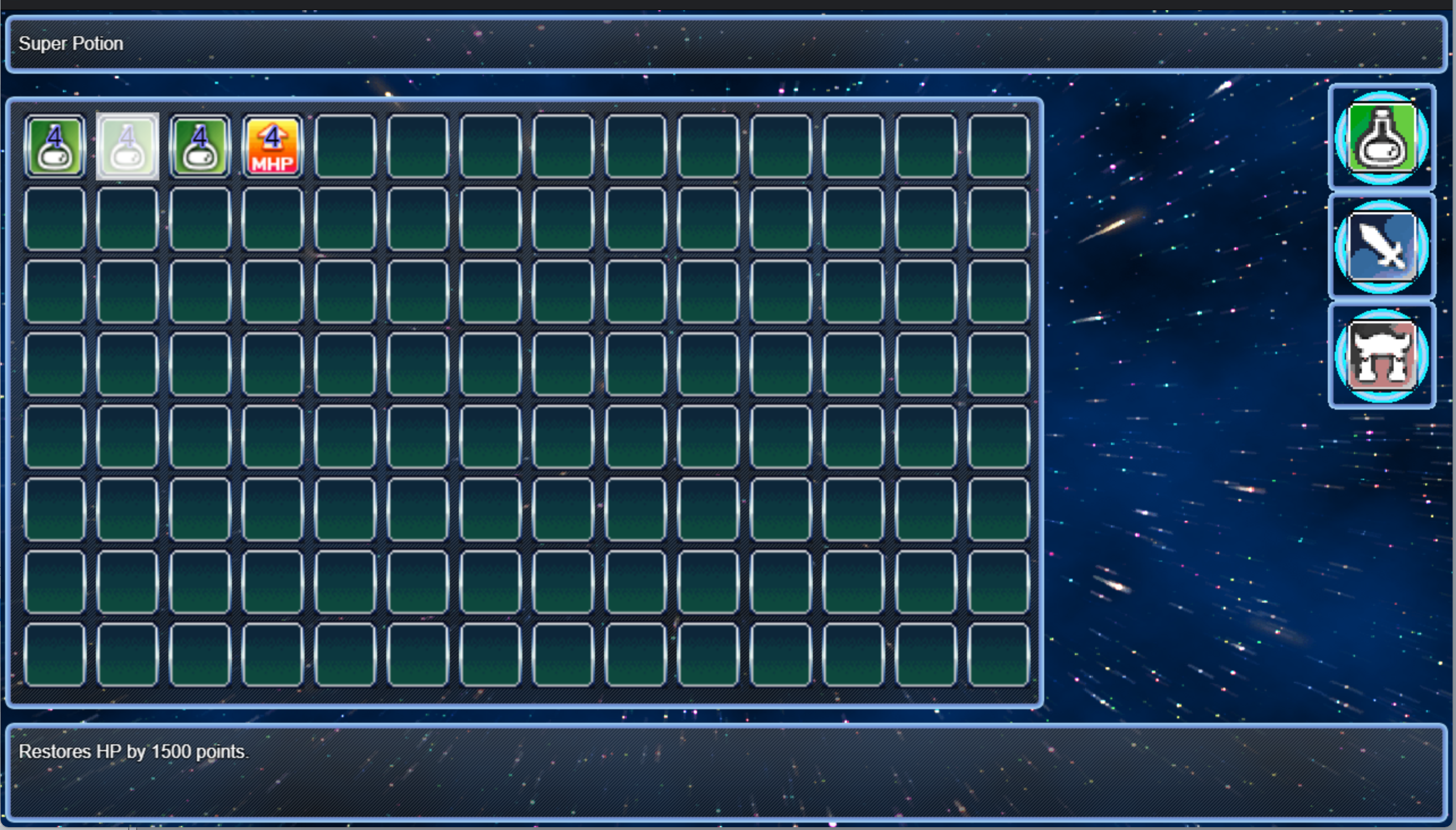
This RPG Maker MV/MZ Plugin lets you customize your own inventory scene: The scene contains two (2) data windows (You can set more or remove them) in which the top is configured to draw the item name and the bottom, the item description. The Middle window is the inventory grid in which the number of columns are customizable and to the right are three category buttons which the player can toggle directly to change the inventory type or the player may use the page up/down keys to toggle between item categories. Features: Customizable backgrounds (Animated possible!)Customizable foregrounds (Animated possible!)Custom buttons (with custom code function possible)Customize category buttons.Smart switching between icon draw or custom graphic draw for itemsCustomize deep aspects of the windows (font size, color, style, window style, transparent window, etc) Let's start with the setup: There are only two parameters here. Replace Item Scene replaces all instances in which Scene_Item scene may be called. The "Scene Setup" parameter is a bit more involved, however: Categories are the various item categories in the game. ALL categories must be setup. Even the default categories "item", "armor", "weapon".Initial category is the category used when the scene is opened. In this case, the item category will be used.Buttons is used to setup custom buttons on the scene. Requires some JS knowledge.Actor Selection Window is the setup for the Actor selection when an item is for single target.Inventory grid is the grid based inventory window you can setup.Dialogue window shows up when an item is selected along with the item command window. It shows text and can show item name.Item Command Window will allow player to use or discard item (if possible). Opens the actor selection window if item requires it. Every window with this plugin allows you to setup two parameters: Dimension Configuration: Setup position and size of the window. Window Font and Style Configuration: Setup font, window skin and window opacity. Some window parameter settings may have a few extra information such as in the case with the inventory grid window: The grid window does NOT scroll along the X-axis so setting up the grids along the horizontal axis requires appropriate setup of "Max Item Columns", "Item Width" and "Dimension Configuration": Width. "Item Width" and "Item Height" will set the size for each grid. The grid window auto resizes custom item graphic and item icon (if no custom graphic used) to fit item width and height. "Grid Graphic" is the graphic used for the grid slot graphic. The Dialogue X and Y represent the start position for the "Dialogue Text". %1 is the item name. Example: Where "HP Increase" is drawn here as it is the name of the item selected. With category setup, you need to pay particular attention to "Category ID". Reserved category IDs are: itemweaponarmor These category IDs have a fixed item list and will not change. You can setup custom categories by using any ID and then using the note tag on that item/weapon/armor in database to set that custom category.: You can create display windows which will show only when that particular category is open: After setting up data windows, remember to setup the category button so that the player can click to change categories in the game. Alternatively, the page up and page down buttons can move up/down categories as set in your plugin parameters.
 Synrec 5 games· 813 followers· 36 ratings· portfolio 65 View creator →
Ratings over time
Cumulative · 30dComments over time
Cumulative · 30dScreenshots
1 / 2