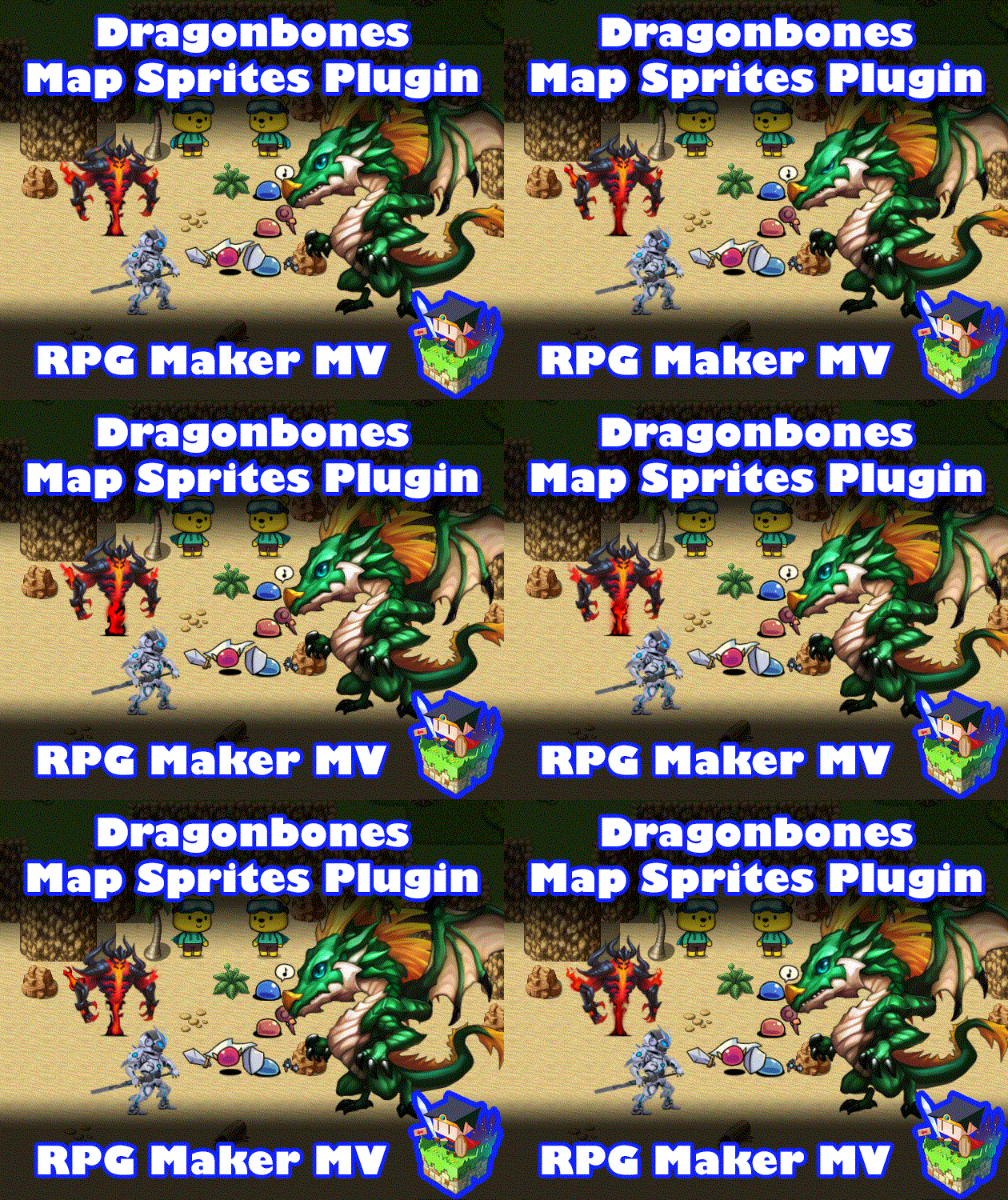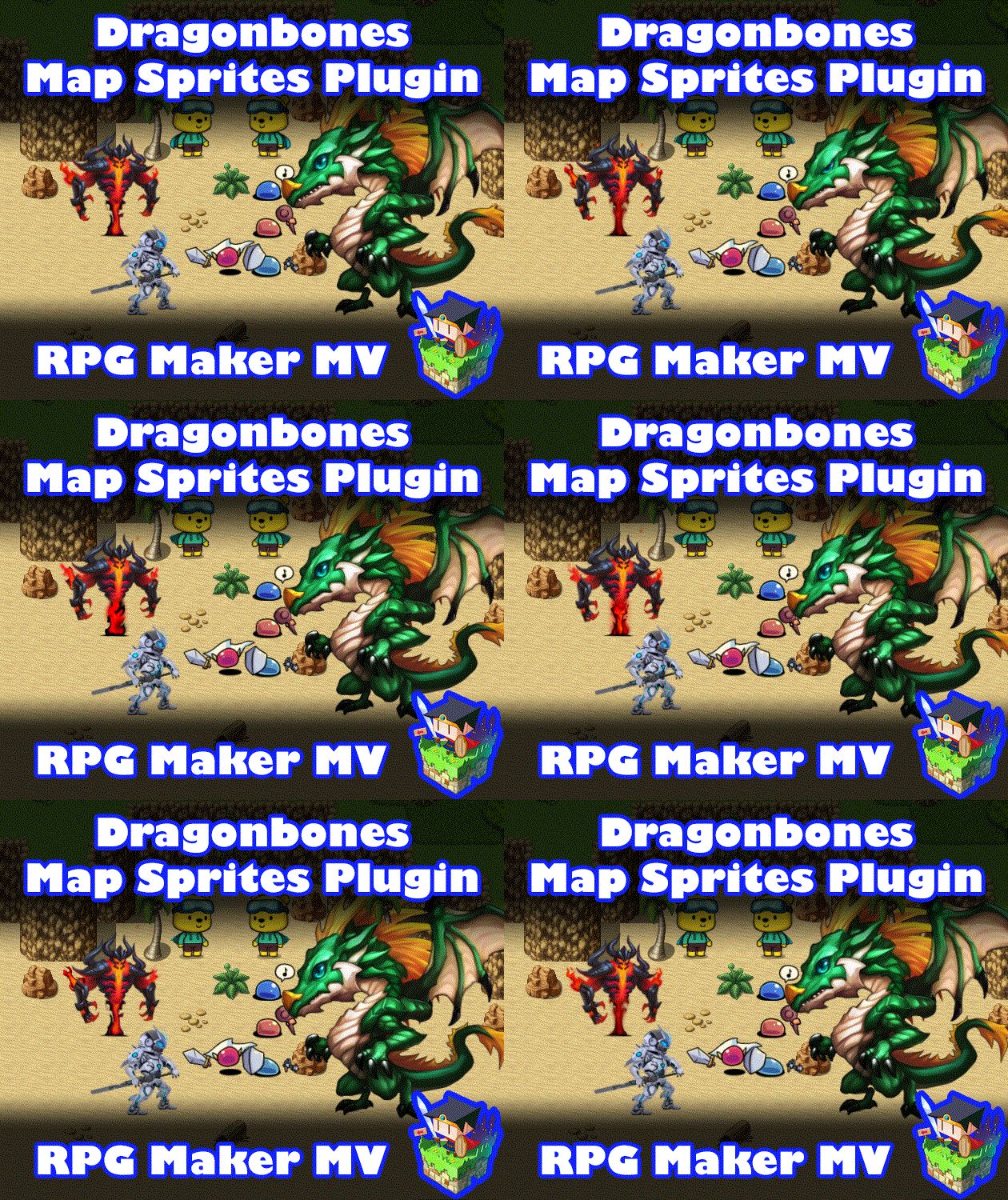
Dragonbones Map Sprites plugin for RPG Maker MV
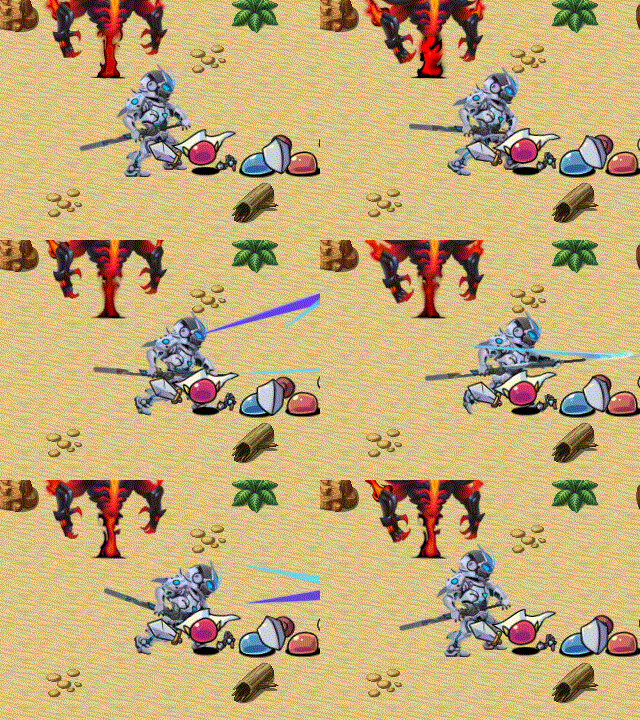
Introduction The plugin enables the ability to attach Dragonbones armatures to characterson the map to use as map sprites and animate them through plugin commands ormovement Script Calls. Dragonbones map sprites can (optional) have uniqueanimations for standing idle, walking, dashing, jumping, and/or climbing aswell as (also optional) unique animations for each direction. This is an extension plugin for KELYEP_DragonBones.Place this plugin under KELYEP_DragonBones in your Plugin Manager list.Credit to TheGreenKel, Yanfly, and Irina must be given upon using this. The required Dragonbones Integration plugin can be downloaded from here: <a href="<a href="https://yanflyengineplugins.itch.io/dragonbones-integration">Dragonbones" class="redactor-linkify-object">https://yanflyengineplugins.itch.io/dragonbones-integration">Dragonbones</a> Integration plugin for RPG Maker MV by Yanfly Engine Plugins</a> Behaviors The following are behaviors that you will need to come to expect out ofDragonbones armatures when used with map sprites. 1. When a Dragonbones armature is loaded, it will play the "Idle" animation upon loading. Make your Dragonbones armatures with this in mind. 2. The Dragonbones armature will always be anchored at the X, Y coordinates of the picture. This X, Y coordinate point will be where the root/pivot point of the Dragonbones armature will be located. 3. The properties used by a picture (ie the opacity, scale, rotation, and tint) will also be shared and/or amplified with the Dragonbones armature. The exception to this will be Blend Modes aren't supported. When Designing Dragonbones Armatures 1. Try not to use more than 99 vertices for meshes. The reason behind this is because the Dragonbones armature is added as a sprite to the game's Tilemap. Any and all sprites added to the Tilemap have some restrictions placed on them as per Pixi JS's design. The Dragonbones armatures are no exception to this. If the number of vertices exceeds 99, strange things will occur to the Dragonbones armature that are outside of this plugin's control. While it won't stop the plugin from functioning properly, expected behaviors may happen due to the threshold. 2. When using Dragonbones armatures that are too tall or wide, they may clip into the tile layer above or to the side due to how the Tilemap works. Things that you would see happen would include clipping into the tops of trees and structures. 3. Certain motions will request specific animations from the Dragonbones armature. If the animations exist, it will play those motions. If they don't, the motions may request a different animation down the line. The request orders are as follows: Jumping: - jump, walk, idle Ladder (Climbing): - ladderclimb, walk, ladderidle, idle Ladder (Idle): - ladderidle, idle Dashing: - dash, walk, idle Walking: - walk, idle Idle: - idle Name the animations for the Dragonbones armature as such to make the most out of the motion priority lists. 4. You can add directional animations for your Dragonbones armature motion animations. To do so, add a number after the animation's name like such: walk2, walk4, walk6, walk8. These numbers are based off the NumPad directions to determine which way to face: 7 8 9 4 6 1 2 3 These numbers are added onto the priority system listed in #3 above, too. Diagonal directions also become split and added multiple times for better streamlining, with a priority given to the horizontal direction before the vertical direction. For example, dashing becomes the following: Dashing (Upper Left): - dash7, dash4, dash8, dash, walk7, walk4, walk8, walk, idle7, idle4, idle8, idle Dashing (Right): - dash6, dash, walk6, walk, idle6, idle 5. When a Dragonbones armature is moving, it will animate slower or faster depending on the character's current movement speed. At speed '4: Normal', it will animation 4x faster than what's seen in Dragonbones. At speed '6: x4 Faster', it will animate 6x faster while '1: x8 Slower' will be at x1 speed seen in Dragonbones. In other words, the speed animated is equal to the number written on the left of the movement speed. When dashing, that multiplier increases by 1 in order to match movement speeds and the Dragonbones armature will do the same to follow. You will need to create your Dragonbones armatures with these 5 key rules inmind in order to make the armatures animate smoothly within your game. Notetags and Comment Tags You can use Dragonbones armatures as map sprites. When used, any of theoriginal sprites before will become invisible and will be replaced with theDragonbones armature. These notetags can be used for actors and events. In the case of events,both notetags and comment tags can be used to determine what settings to usefor the Dragonbones armatures. Be cautious when using Comment Tags for event pages since comments contain amaximum line count of 6. --- <Dragonbones Sprite: filename> - Used for: Actor, Event Notetags and Event Page Comment Tags - Sets the DragonBones associated with this map sprite to be 'filename'. - The name will be associated with the assets used. - It will be used to check for associated filenames that end with _ske.json, _tex.json, and _tex.png. - The listed assets must be found in the assigned assets folder. Examples: <Dragonbones Sprite: Demon> <Dragonbones Sprite: DragonBoy> <Dragonbones Sprite: Swordsman> <Dragonbones Sprite: Ubbie> --- <Dragonbones Sprite Scale: x, y> <Dragonbones Sprite Scale X: x> <Dragonbones Sprite Scale Y: x> - Used for: Actor, Event Notetags and Event Page Comment Tags - Sets the base scale for the Dragonbones associated with this map sprite. This is for those instances where a Dragonbones armature is too large or small and needs to be scaled down/up. - This scale will be amplified by the character's sprite's scale value. - Use the 1st notetag to assign values to both Scale X and Scale Y. - Use the 2nd/3rd notetags to assign Scale X and Y values separately. - Use negative values to flip the Dragonbones armature around. Examples: <Dragonbones Sprite Scale: -0.3, 0.3> <Dragonbones Sprite Scale X: -0.3> <Dragonbones Sprite Scale Y: 0.3> --- <Dragonbones Sprite Time Scale: x> - Used for: Actor, Event Notetags and Event Page Comment Tags - Lets you adjust the time scale for the Dragonbones armature. - Replace 'x' with a number value depicting how fast the armature should animate. - 1.0 is the default value. - Higher numbers animate faster. - Lower numbers animate slower. - If a number is too small, it may not animate at all. Example: <Dragonbones Sprite Time Scale: 1.5> --- <Dragonbones Sprite Size: width, height> <Dragonbones Sprite Width: x> <Dragonbones Sprite Height: x> - Used for: Actor, Enemy Notetags - Dragonbones armatures have no standard width or height. This makes it problematic when trying to calculate the sprite's width/height for various plugins that use it. These notetags allow you to assign a width and height value to the sprite, despite the fact the Dragonbones armatures have no such thing. - Replace 'width', 'height', or 'x' with number values representing the dimension values in pixels. - Use the 1st notetag to assign values to both Width and Height. - Use the 2nd/3rd notetags to assign Width and Height values separately. - If these notetags aren't used, then use the values defined by default in the Plugin Parameters. Examples: <Dragonbones Sprite Size: 48, 64> <Dragonbones Sprite Width: 48> <Dragonbones Sprite Height: 64> --- <Dragonbones Sprite Flip Left> <Dragonbones Sprite Flip Right> <Dragonbones Sprite No Flip Left> <Dragonbones Sprite No Flip Right> - Used for: Actor, Event Notetags and Event Page Comment Tags - Lets the map sprite know to flip itself when facing either the left/right directions in order to reuse animations. - The 'No' variants will prevent flipping from occuring. - These notetags will override settings applied in the Plugin Parameters. --- <Dragonbones Sprite Motion Idle: animation> <Dragonbones Sprite Motion Walk: animation> <Dragonbones Sprite Motion Dash: animation> <Dragonbones Sprite Motion Jump: animation> <Dragonbones Sprite Motion LadderIdle: animation> <Dragonbones Sprite Motion LadderClimb: animation> - Used for: Actor, Event Notetags and Event Page Comment Tags - Lets you set specific animations different from the ones listed in the Plugin Parameters for specific motions. - Replace 'animation' with the name of the Dragonbones animation. - If this notetag is not used, when such a motion is rquested, it will default to attempting to play the animation name equal to the motion. - Animation names do not need to be case sensitive. - If no animation is found, then no animation will be played. Example: <Dragonbones Sprite Motion Idle: stand> <Dragonbones Sprite Motion Walk: move> <Dragonbones Sprite Motion Dash: run> <Dragonbones Sprite Motion Jump: hop> --- <Dragonbones Sprite Settings> Filename: filename Scale: x, y Scale X: x Scale Y: x Time Scale: x Width: x Height: x Flip Left Flip Right No Flip Left No Flip Right Motion Idle: animation Motion Walk: animation Motion Dash: animation Motion Jump: animation Motion LadderIdle: animation Motion LadderClimb: animation </Dragonbones Sprite Settings> - Used for: Actor, Event Notetags and Event Page Comment Tags - The above notetag allows to wrap up all the information you'd like to set for Dragonbones battler armatures needed inside a single notetag container. - The settings are the same as the notetags listed above it. - You may remove the settings you don't wish to change. - The only necessary data is the 'Filename: filename' line. Example: <Dragonbones Sprite Settings> Filename: Ubbie Scale: 0.1, 0.1 Flip Right Motion Idle: stand </Dragonbones Sprite Settings> --- Plugin Commands Insert these for your Plugin Commands to control the Dragonbones armatureattached to a map sprite. --- Actor id Dragonbones Sprite Animation: animationEvent id Dragonbones Sprite Animation: animationParty index Dragonbones Sprite Animation: animation - Replace 'id' with the ID of the actor/event to target. - Replace 'index' with the index of the party member to target. - Replace 'animation' with the Dragonbones animation name to play. - Note: Case sensitive. - Replace 'animation' with "Clear Animation" to clear it. --- You can change the Dragonbones map sprite properties of actors permanentlyby using the following plugin commands. --- Actor id Dragonbones Sprite Filename: filenameParty index Dragonbones Sprite Filename: filename - Replace 'id' with the ID of the actor/event to target. - Replace 'index' with the index of the party member to target. - Replace 'filename' with the Dragonbones Armature's name. - Note: Case sensitive. --- Actor id Dragonbones Sprite Scale: x, yParty index Dragonbones Sprite Scale: x, y - Replace 'id' with the ID of the actor to target. - Replace 'index' with the index of the party member to target. - Replace 'x' and 'y' with the amount to scale the sprite by. --- Actor id Dragonbones Sprite Speed: xParty index Dragonbones Sprite Speed: x - Replace 'id' with the ID of the actor to target. - Replace 'index' with the index of the party member to target. - Replace 'x' with the base speed of the animation. - 1 is normal speed. --- Actor id Dragonbones Sprite Size: width, heightParty index Dragonbones Sprite Size: width, height - Replace 'id' with the ID of the actor to target. - Replace 'index' with the index of the party member to target. - Replace 'width' and 'height' with values to determine the sprite's size. - Dragonbones armatures don't use width and height but other plugins do. --- Actor id Dragonbones Sprite Flip Left: trueActor id Dragonbones Sprite Flip Left: falseActor id Dragonbones Sprite Flip Right: trueActor id Dragonbones Sprite Flip Right: false Party index Dragonbones Sprite Flip Left: trueParty index Dragonbones Sprite Flip Left: falseParty index Dragonbones Sprite Flip Right: trueParty index Dragonbones Sprite Flip Right: false - Replace 'id' with the ID of the actor to target. - Replace 'index' with the index of the party member to target. - Turns 'Flip Left' or 'Flip Right' on/off. --- Actor id Dragonbones Motion type: animationParty index Dragonbones Motion type: animation - Replace 'id' with the ID of the actor to target. - Replace 'index' with the index of the party member to target. - Replace 'type' with any of the following: - Idle - Walk - Dash - Jump - Ladder Idle - Ladder Climb - Replace 'animation' with the Dragonbones animation name to use for that specific motion type. This is case sensitive. --- Script Calls Put this inside of a Move Route Script Call to make it play a Dragonbonesanimation: this.dragonbonesAnimation = 'AnimationName'; Replace 'AnimationName' (keep the quotes) with the name of the Dragonbonesanimation. This is case sensitive. RPG Maker Version This plugin is made for and tested on RPG Maker MV with version 1.6.2. I cannot guarantee if it works on lower versions. Terms of Use 1. These plugins may be used in free or commercial games.2. 'RPG Maker Irina' must be given credit in your games.3. You are allowed to edit the code.4. Do NOT change the filename, parameters, and information of the plugin.5. You are NOT allowed to redistribute these Plugins.6. You may NOT take code for your own released Plugins. Changelog 2020.04.13- Fixed issue with balloon icons not appearing at the right height.2020.04.11- Fixed issue with games that did not have the updated Pixi filters library.2020.04.02- Fixed issue with followers not updating if an actor is added or removed from the party.- Fixed an issue with events changing to a different event page without a Dragonbones armature.
 Irina 14 games· 1.5k followers· 171 ratings· portfolio 80 View creator →
Ratings over time
Cumulative · 30dScreenshots
1 / 5